Configurable Send Time Settings for Automation Notification Steps
Automation Steps
Bullhorn Automation introduces configurable send time settings for notification steps, giving staffing teams control over when individual and summarized notifications are delivered.
What's new?
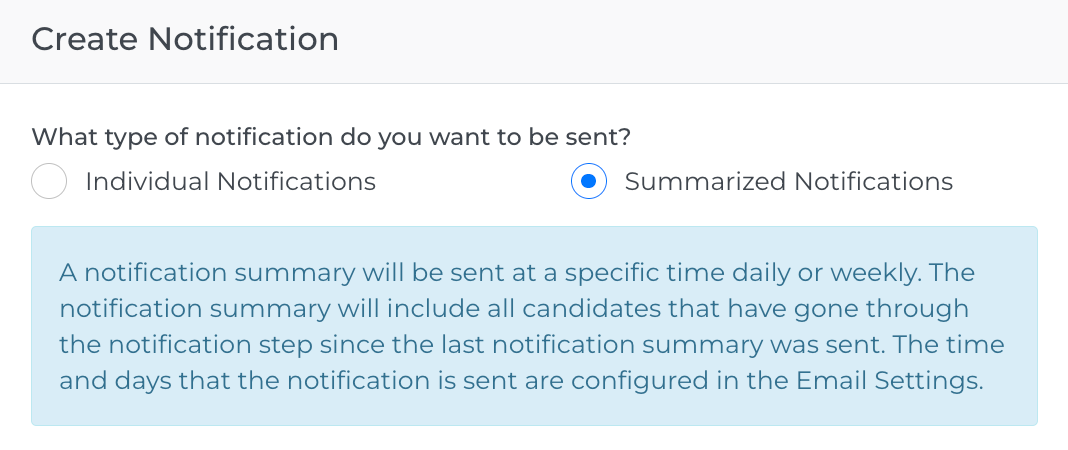
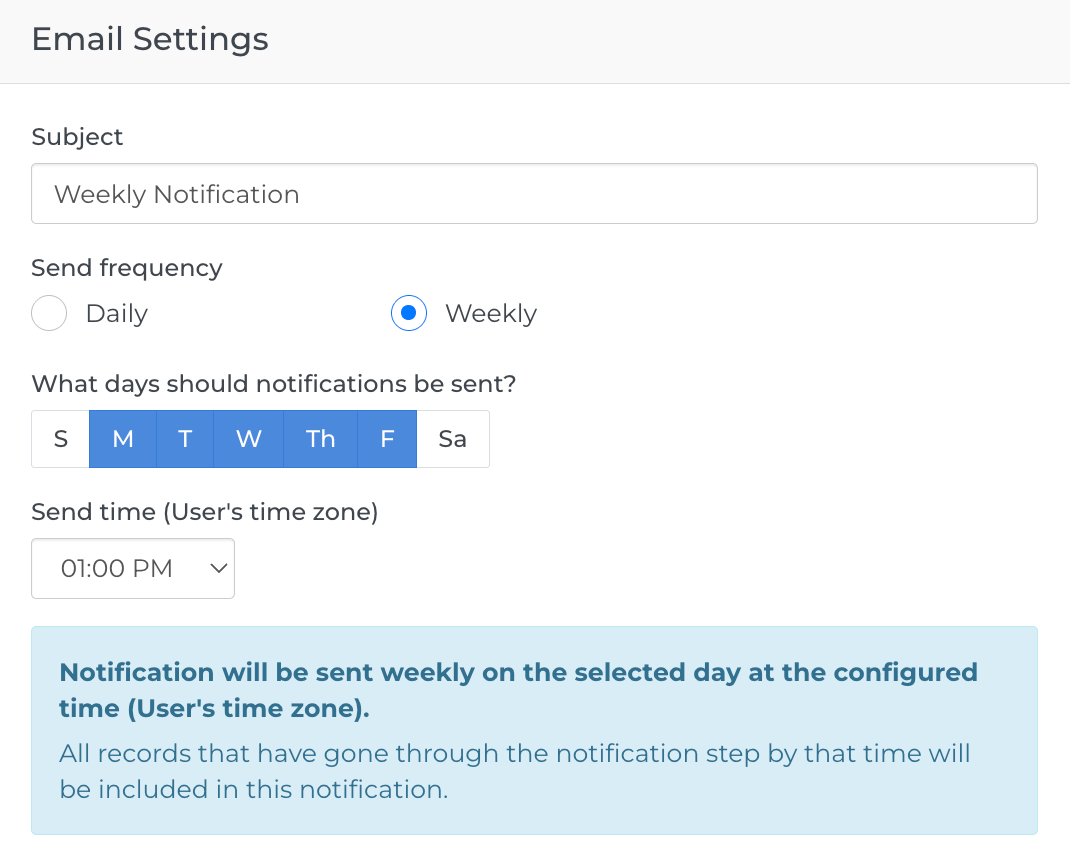
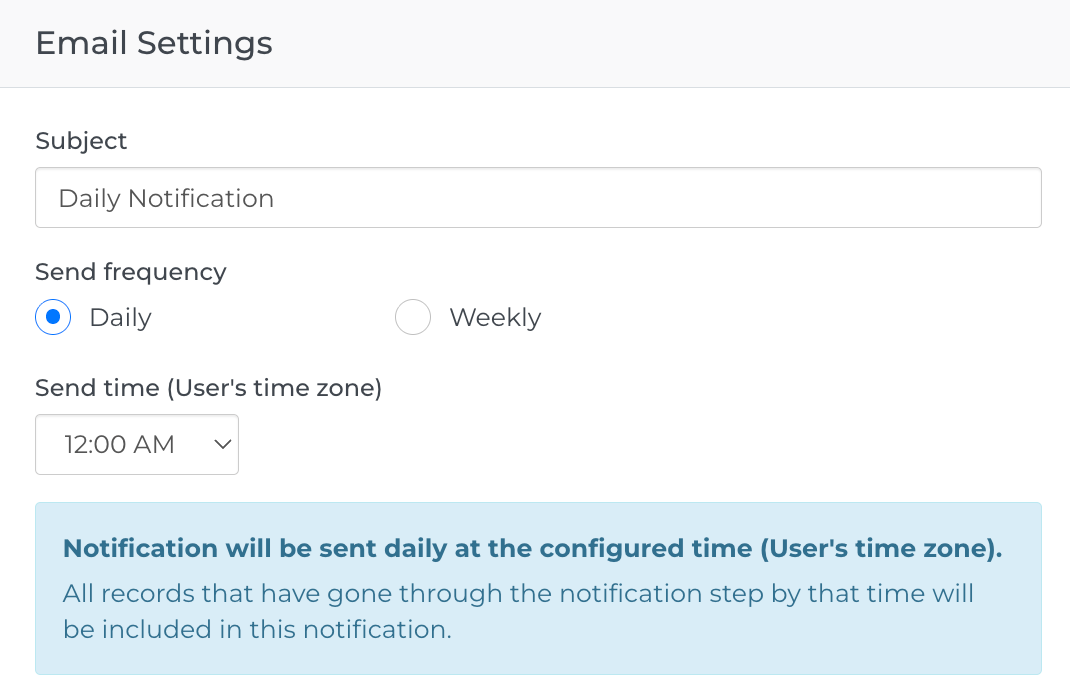
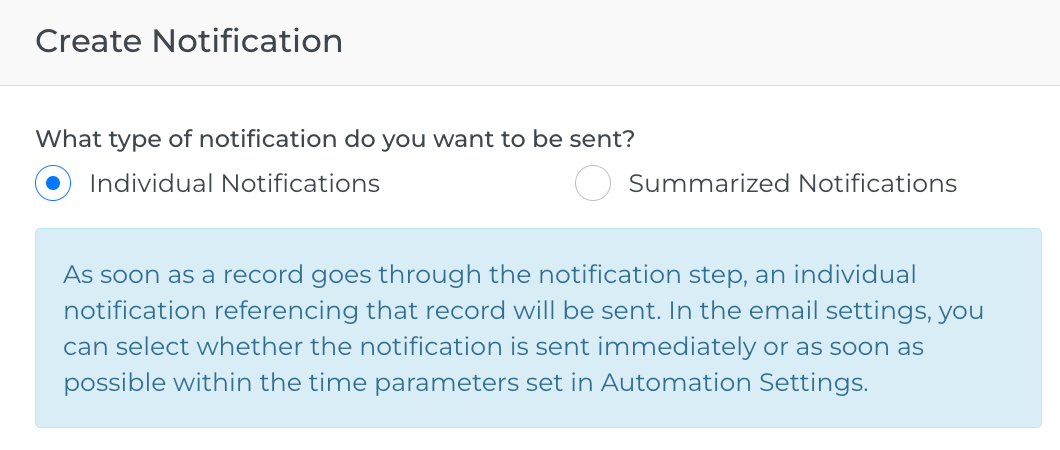
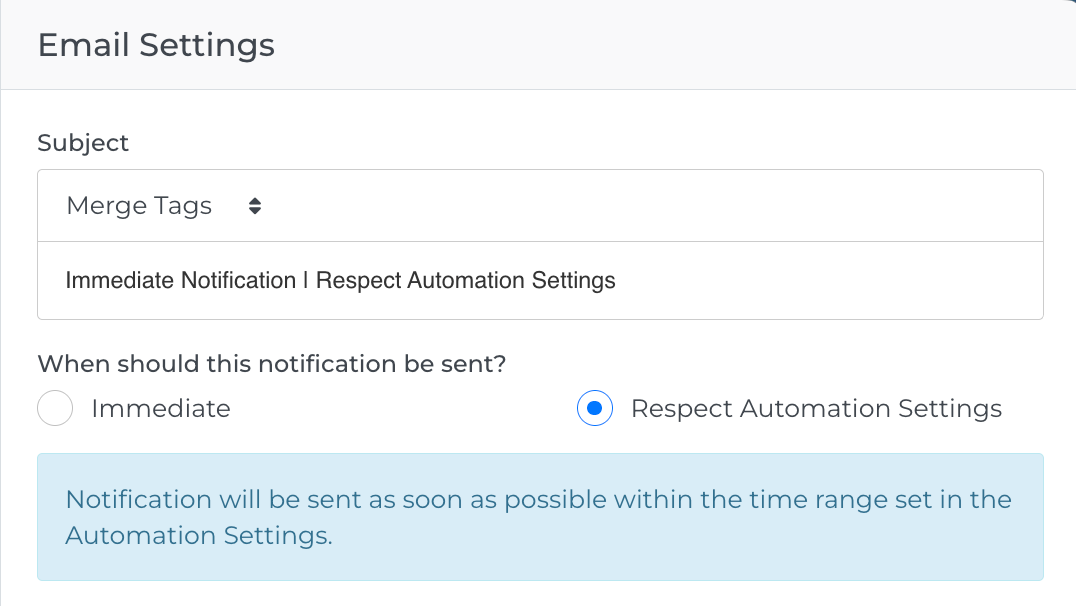
The Create Notification drawer has been updated to group notification types into two categories: Individual and Summarized. Individual notifications can be sent immediately upon trigger or held to respect the automation's configured send window. Summarized notifications can be scheduled on a daily or weekly cadence, with a specific delivery time and, for weekly, a specific day of the week.
Why does it matter?
Previously, daily and weekly notifications sent at hardcoded times, meaning recruiters frequently received actionable alerts outside their working hours, leading to ignored or deleted messages. Configurable send times allow staffing teams to align notification delivery with recruiter working hours, improving the reliability of automation-driven outreach and ensuring follow-through on time-sensitive tasks.
How do I enable this?
This feature is rolling out gradually and will be enabled for your account automatically. No action is required. Once enabled, the updated send time settings will appear when creating or editing a notification step.
To configure send time settings after enablement:
-
Step 1: Open an automation and navigate to an existing notification step or add a new one.
-
Step 2: Under Notification Type, select either Individual Notifications or Summarized Notifications.
-
Step 3: For Individual Notifications, choose a send option:
-
Step 4: For Summarized Notifications, select a frequency:
-
Step 5: Save the notification step.
Existing notification steps will retain their current settings after enablement.
New UI Elements: